Configuring a Router as an Access Point: A Comprehensive Guide
Are you tired of dealing with weak or patchy Wi-Fi signals in your home or office? One way to improve your wireless network coverage is by configuring a router as an access point. In this article, we will walk you through the process of configuring your router as an access point, which can help you to extend your network coverage and boost your Wi-Fi signal.
What is Access Point Mode?
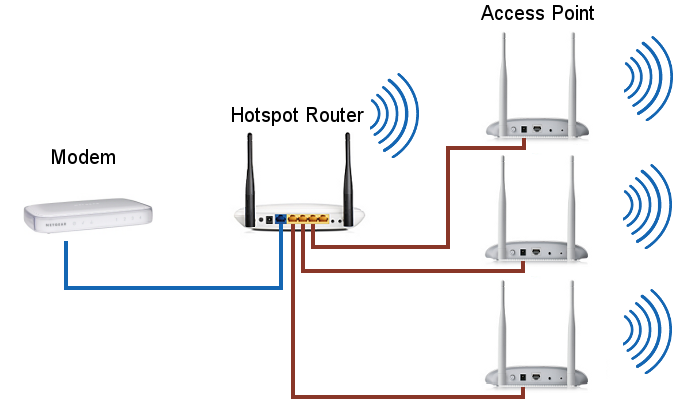
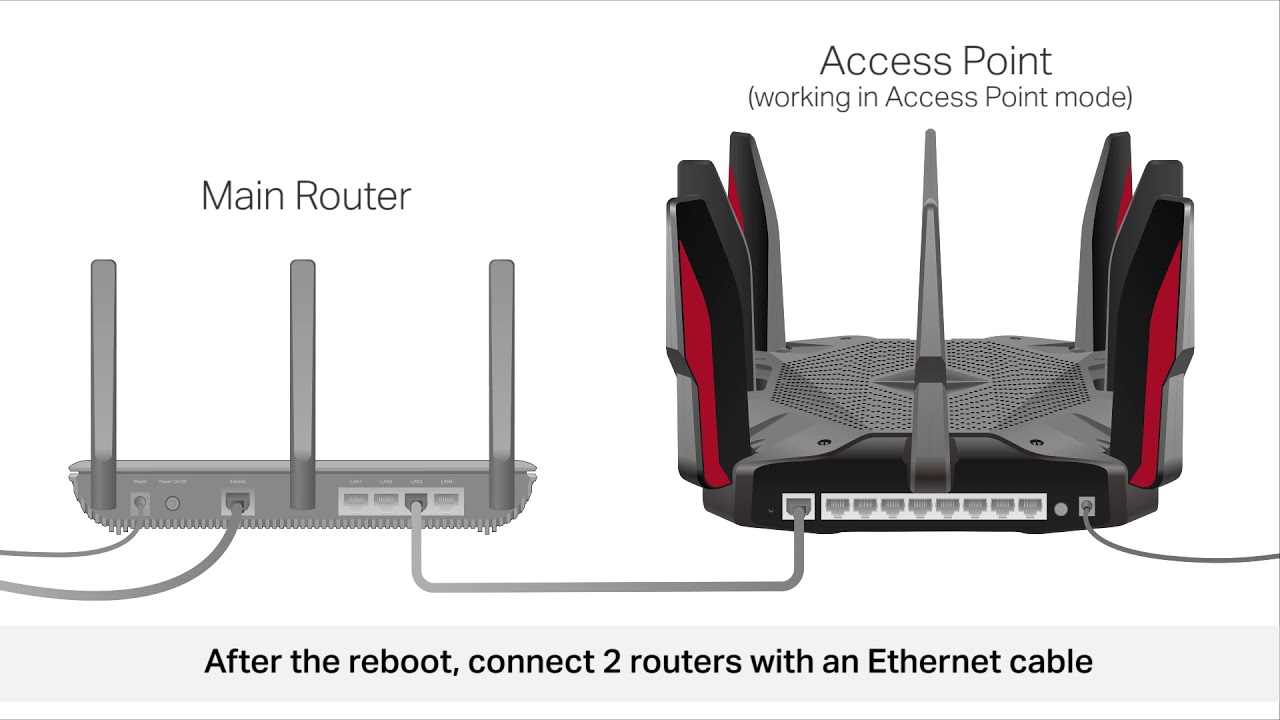
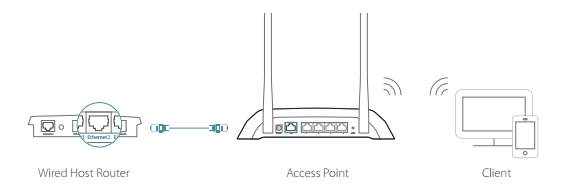
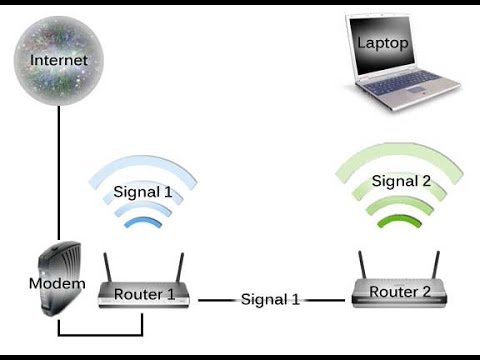
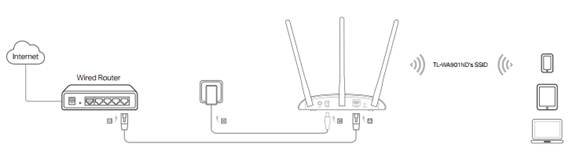
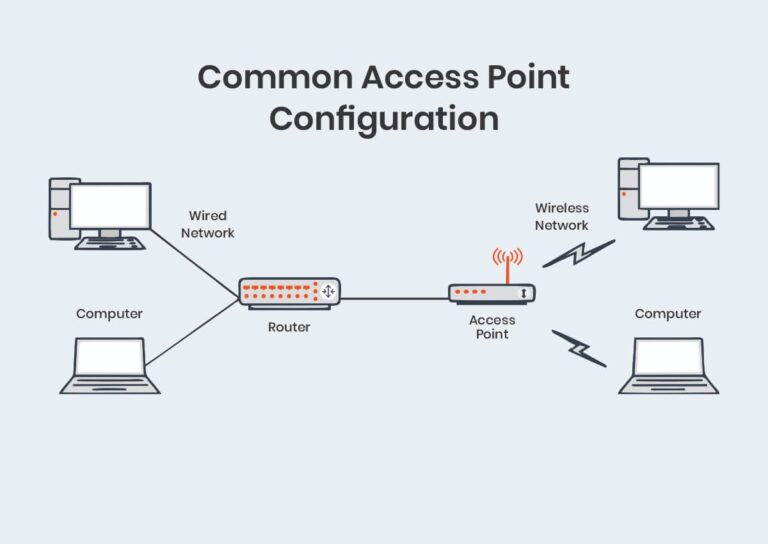
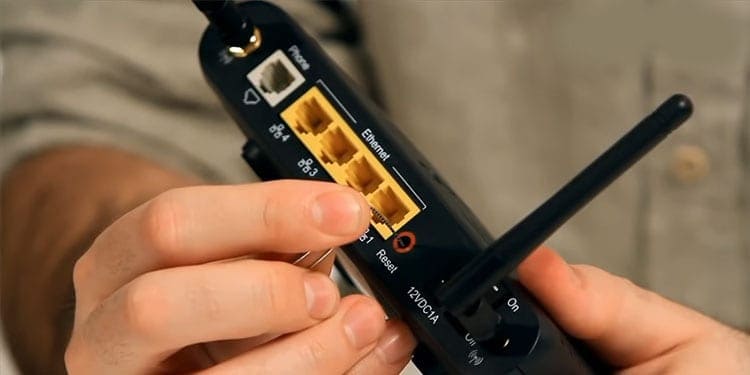
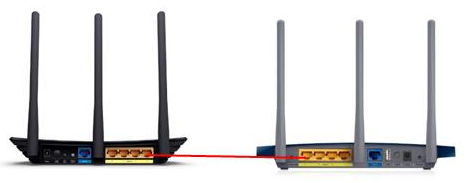
Before we dive into the configuration process, let us first understand what access point mode is. Access point mode allows a router to use a wired connection to the primary router or modem to extend network coverage. This is different from a range extender, which repeats the wireless signal from your router to expand its reach by creating a second network. An access point, on the other hand, relies on a hardwired connection to your network, rather than simply repeating the existing network.
Benefits of Configuring a Router as an Access Point
Configuring your router as an access point has several benefits, including:
- Improved network coverage: By extending your Wi-Fi network, you can improve coverage in areas where your main router's signal is weak or patchy.
- Increased connectivity: With multiple access points, you can increase the number of devices that can connect to your network at the same time.
- Easier network management: Configuring your router as an access point can make it easier to manage your network, as you can set up multiple access points to work in harmony with your main router.

Requirements for Configuring a Router as an Access Point
To configure your router as an access point, you will need the following:
- A router that supports access point mode
- A wired connection to the primary router or modem
- No modifications to the router's firmware (for most modern routers)
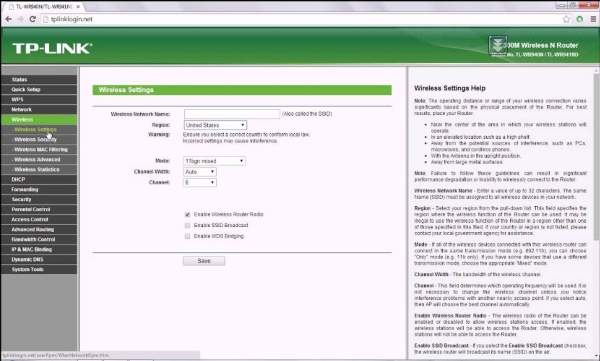
Step-by-Step Instructions for Configuring a Router as an Access Point
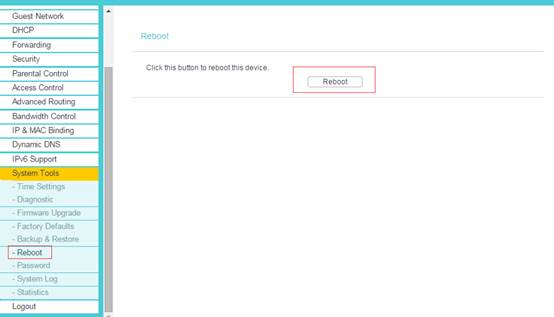
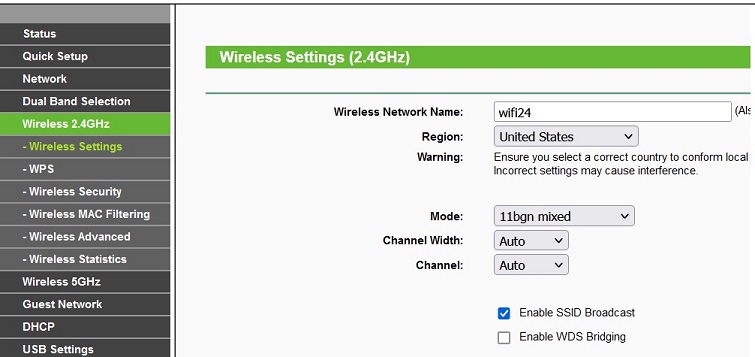
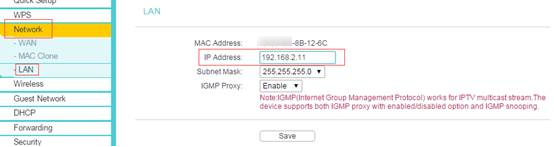
Here are the step-by-step instructions for configuring your router as an access point:
Additional Tips and Considerations
Here are some additional tips and considerations to keep in mind when configuring your router as an access point:
- Make sure to use the same SSID and password as your main router for easy connectivity.
- Choose a different channel to avoid interference with other networks.
- Use Quality of Service (QoS) settings to prioritize certain devices or applications.
Configuring your router as an access point is a great way to improve your wireless network coverage and boost your Wi-Fi signal. With the steps outlined above, you can easily configure your router as an access point and enjoy seamless connectivity throughout your home or office. Remember to check with your router's manufacturer to confirm compatibility and to follow the specific configuration steps for your device.
Related Resources
For more information on configuring routers as access points, check out the following resources:
- TP-Link's tutorial on setting up a TP-Link router as a wireless access point
- Netgear's guide on setting up a NETGEAR router in access point mode
- OpenWrt's documentation on configuring a router as a WiFi bridge and access point
By following the steps outlined in this article, you can configure your router as an access point and enjoy a stronger, more reliable wireless network.
![Image showcasing [Wireless Router] How to set up access point (AP) mode?](https://kmpic.asus.com/images/2021/12/28/83cddd43-b0c5-4211-8e0a-44522f0f134f.png "[Wireless Router] How to set up access point (AP) mode?")





![Setup TP-Link Router as a Wireless Access Point [2 Methods]](https://www.baeldung.com/wp-content/uploads/sites/4/2021/06/access-point-1024x361.png "Setup TP-Link Router as a Wireless Access Point [2 Methods]")






![[Wireless Router] How to set up access point (AP) mode? - Configuring Router As Access Point](https://i.ytimg.com/vi/w4GFaIas_bQ/hqdefault.jpg "[Wireless Router] How to set up access point (AP) mode?")